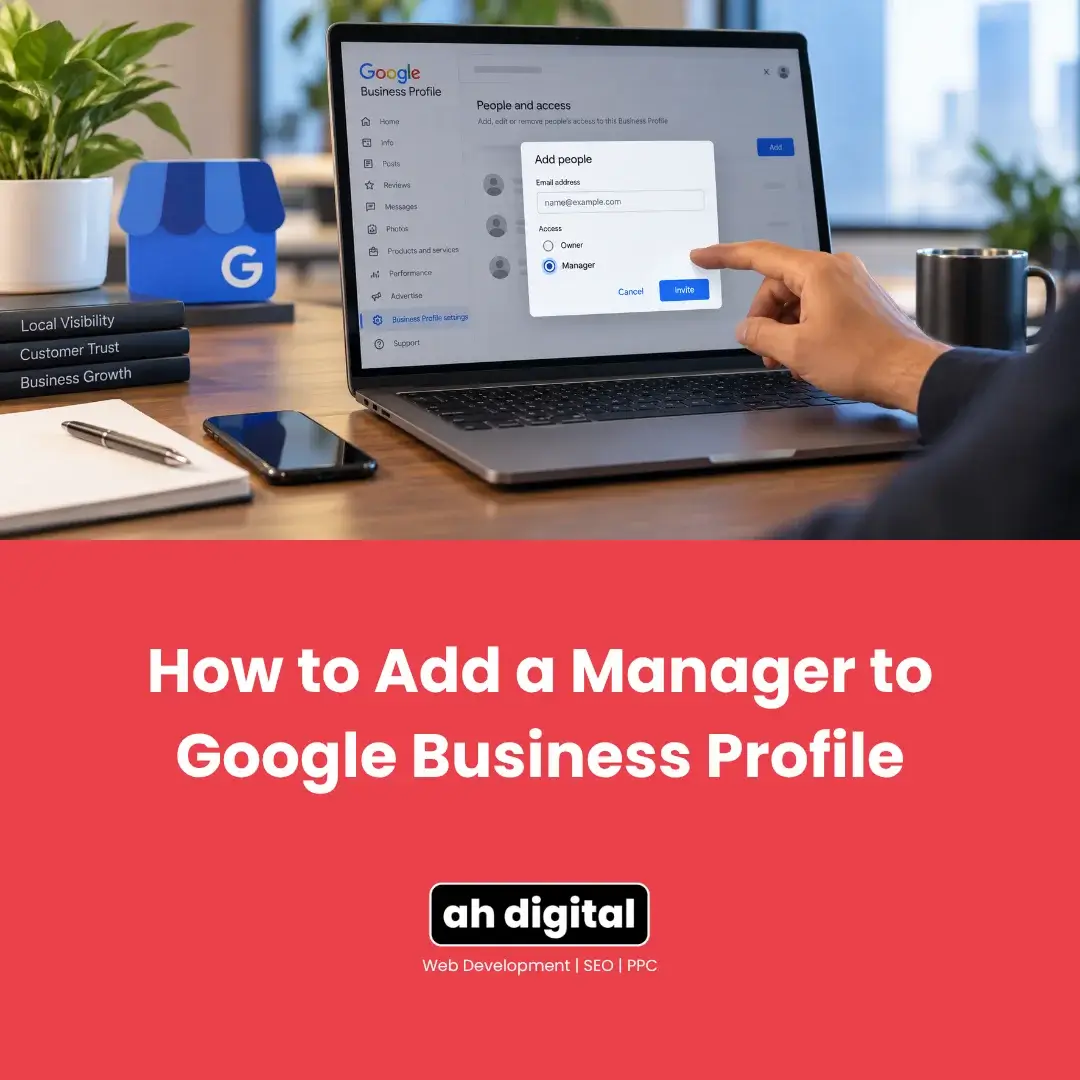
You need to give someone access to your Google Business Profile. An agency you have just hired, or a staff member who will answer reviews and post updates.
The steps are below, in order, with a screenshot for each one. It takes under two minutes.
One thing before you start. Add them as a Manager, not an Owner. The reason is further down this page, and it matters more than most business owners realise until it is too late to change.
Add a Manager in 7 Steps
- Search your business name on Google, signed in to the account that owns the profile.
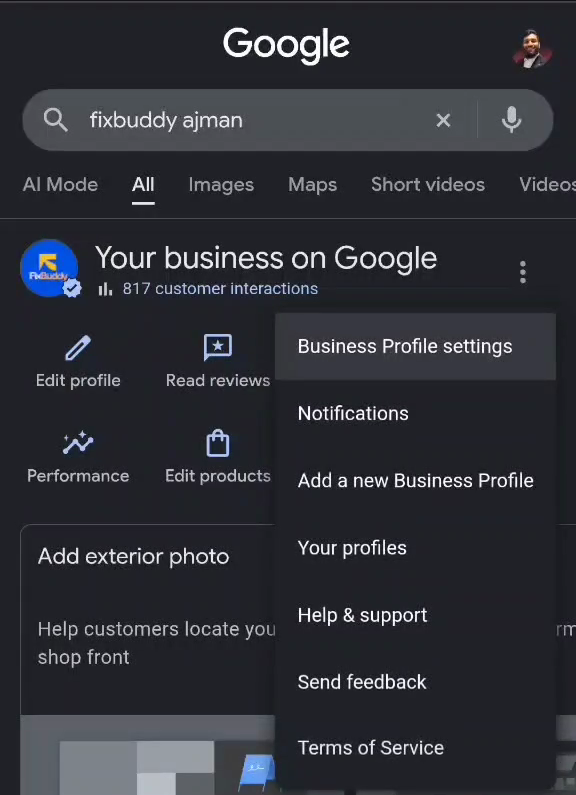
- Next to Your business on Google, tap the three dot menu, then tap Business Profile settings.
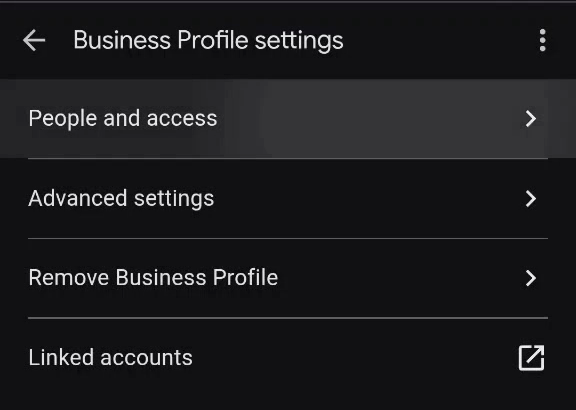
- Tap People and access.
- Tap Add.
- Type the Google account email address of the person you are adding.
- Under Access, select Manager.
- Tap Invite.
That is the whole process. They get an email, they accept, and they appear in your list of people. Nothing else is required from you.
The screenshots below walk through the same seven steps one at a time, and there is a 20 second video if you would rather just watch it happen.
Watch It: A 20 Second Walkthrough
The Same Steps, One Screenshot at a Time
Step 1: Search Your Own Business Name on Google
Sign in with the Google account that already owns the profile, then search your business name. Your management panel appears at the top of the results, headed Your business on Google.
If that panel does not appear, you are signed in to the wrong Google account. That is the single most common reason people get stuck before they have even started.
Step 2: Open Business Profile Settings
Tap the three dot menu to the right of Your business on Google, then tap Business Profile settings.
Step 3: Tap People and Access
It is the first option on the settings screen.
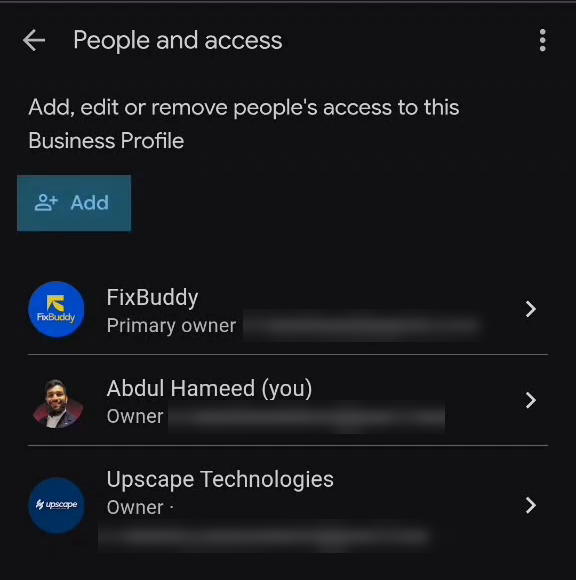
Step 4: Tap Add
This screen also lists everyone who currently has access to your profile, and what level of access each of them has. Read that list before you add anyone. It is the only place this information exists, and most owners are surprised by at least one name on it.
Step 5: Enter Their Email Address
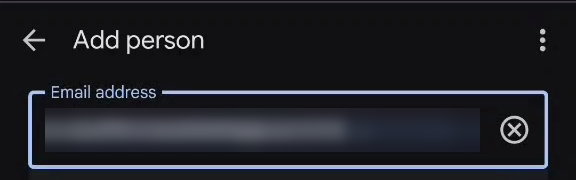
Use the exact Google account email address the person signs in with. Not a company inbox, not a name, not an address they merely forward mail to. Access is tied to a specific Google account and nothing else.
Step 6: Choose Manager
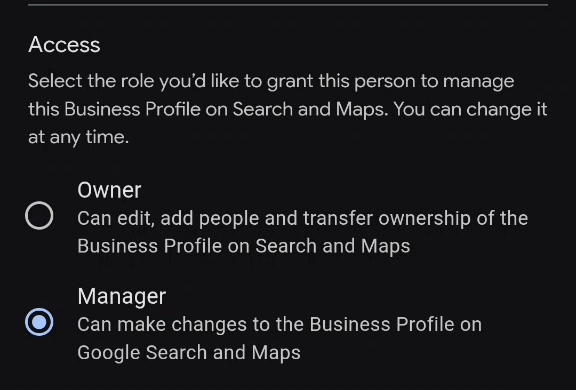
Two options appear under Access. Owner, described as being able to edit, add people and transfer ownership. Manager, described as being able to make changes to the profile. Select Manager.
Step 7: Send the Invite
Tap Invite at the bottom right.

What Happens After You Tap Invite
They Accept, and Then They Are In
Google’s documentation is straightforward here: invited users can accept and become users right away, and you get an email once they do. Until they accept, they sit in a PENDING section on the People and access screen, where you can cancel the invite if you change your mind.
The Seven Day Restriction Nobody Mentions
Here is a detail almost no guide covers. When someone becomes an owner or manager, they have to wait seven days before they can manage some profile features. During that window they cannot delete or undelete the profile, remove other owners or managers, or transfer primary ownership.
It is a deliberate safeguard. A compromised or hastily added account cannot immediately lock everyone else out. If you are handing a business over on a fixed date, plan around that week rather than discovering it on the day.
Manager or Owner: What Actually Changes
Day to Day, Almost Nothing
A Manager has mostly the same access to the profile as an Owner. Editing business information, hours and contact details. Responding to reviews. Creating posts. Managing photos, services and products. For anyone actually doing the daily work, Manager access covers all of it.
The One Restriction That Is the Entire Point
What a Manager cannot do: add or remove other users, and delete the Business Profile. Only owners can remove other owners and managers. That is the whole distinction, and it is a significant one.
An agency or employee with Manager access can run the profile day to day and never touch who else has control over it. An agency or employee with Owner access can add themselves as an additional Owner, add other accounts you never approved, and in the worst case you discover this only when you try to make a change yourself and find your own access has been altered.
Primary Owner Is Its Own Special Case
A profile can have multiple Owners, but only one Primary Owner at any given time. The Primary Owner cannot remove themselves from that role without first transferring it to someone else. If you are the business owner, you want to be the Primary Owner, and you want to stay that way deliberately rather than by accident.
An independent guide to profile ownership puts the rule plainly: give agencies Manager access for routine work, and never make an agency the only owner. A single compromised owner account can affect every profile that account controls.
The Role System Changed, and Old Guides Still Describe the Wrong One
Two Roles Now, Not Three
Google’s current guidance is direct about this. There are two roles on a Business Profile, Owner and Manager. What used to be called Site Manager is simply the old name for Manager. It was not a separate, more limited tier, it was renamed.
A lot of content still online describes Owner, Manager and Site Manager as three distinct levels. That was accurate once. It is not accurate now, and following outdated instructions means looking for a “Site Manager” option that will not appear, or assuming a more restricted tier exists when it does not.
If the Invite Never Arrives
Check the Obvious Things First
Spam folder, and the exact spelling of the address. An invitation sent to a mistyped address simply sits in PENDING forever, and there is no bounce notification to tell you.
There Is a Known Bug Worth Knowing About
This is not always your fault. Google Business Profile access invitations were reported as not being delivered in June 2026, confirmed by several local search specialists. The workaround that was reported to still work is sharing access through the Agency Dashboard using a business group code.
If your invite has genuinely vanished, cancel the pending invite and send it again before assuming the problem is on the recipient’s end.
If You Are Handing a Portfolio to an Agency
There Is a Cleaner Mechanism Than Adding One Email
For a single location, adding a Manager by email is the right approach. For several locations, Google supports a different model. An agency can hold an organization ID, and a business group owner can invite that organization to manage a group of profiles, rather than granting access profile by profile to one person’s Gmail address.
That matters for a practical reason. Access granted to an organization survives an individual employee leaving that agency. Access granted to one staff member’s personal Gmail address does not.
What to Say if an Agency Asks for Owner
You do not need to justify granting Manager rather than Owner, and a competent agency will not push back, because Manager genuinely covers everything they need to do the work. If an agency insists on Owner access specifically and cannot explain why Manager is insufficient for their actual tasks, treat that as a signal.
We covered what happens when this goes wrong in our guide on recovering a Google Business Profile from an ex-employee or old agency. That situation, and the weeks it typically takes to resolve, exists because someone was granted Owner access when Manager would have covered everything they actually needed.
Common Mistakes When Granting Access
Using a Name or a Company Inbox Instead of a Google Account
Access is tied to a specific Google account, not a person or a company. Confirm the exact address the person uses to sign in to Google, not a general info@ inbox that might not be linked to any Google account at all.
Forgetting to Remove Access When the Relationship Ends
An expired contract or a departed employee does not automatically lose access. Removing it is a manual step, and it is the one most commonly forgotten, precisely because nothing prompts you to remember it. Open People and access every few months and read the list.
Granting Owner Access Just in Case
Broader access than someone currently needs is not a safety margin. It is a liability sitting quietly until something goes wrong. Grant what the role actually requires today and adjust later if the role genuinely changes.
If your profile has other maintenance gaps beyond who has access, our guide on common GBP mistakes quietly costing businesses customers covers the rest of what is worth checking at the same time.
The Bottom Line
Seven steps, under two minutes, and the only decision that really matters is the one on step six.
Manager access covers essentially everything an agency or employee needs to run your Google Business Profile day to day. The one thing it withholds, control over who else has access, is precisely the thing you should keep for yourself.
Add people as Managers by default. Reserve Owner access for someone you would trust with the entire business, not just its marketing. And check your access list periodically, because standing access nobody remembers granting is how these situations start.
If you would rather have your profile’s access set up correctly from the start, or audited if you are not sure who currently has it, our Google Business Profile management service covers exactly this.
WhatsApp Hameed for a quick question, or call +971 56 544 6241 for a free consultation. There is also a contact form if you would rather write it out.
The right access level costs nothing to set up correctly. The wrong one costs weeks to undo.